CSS position
The CSS position property is used to specify the positioning method for an element. This property allows you to control how an element is placed within the document. The position property has several possible values, each with its own unique behavior.
static: The default, follows normal document flow.relative: Positioned relative to its normal position.absolute: Positioned relative to the nearest positioned ancestor.fixed: Positioned relative to the viewport, doesn’t move on scroll.sticky: A hybrid ofrelativeandfixed, “sticks” at a certain scroll position.initial: Resets to the default value (static).inherit: Inherits the position property from its parent.unset: Resets to the inherited or default value.
position: static
position: staticis the default value for thepositionproperty.- Elements with
position: staticare positioned according to the normal flow of the document. - The
top,right,bottom, andleftproperties have no effect.
Example:
.static-box {
    width: 100px;
    height: 100px;
    background-color: lightblue;
    position: static;
}<div class="static-box">Static</div>position: relative
Relative to its normal position:
- Elements with
position: relativeare positioned relative to their normal position in the document flow. - The
top,right,bottom, andleftproperties are used to adjust the element’s position from its original place. - Other elements in the flow are not affected, meaning the space originally occupied by the element is preserved.
Example:
.relative-box {
    width: 100px;
    height: 100px;
    background-color: lightcoral;
    position: relative;
    top: 20px;
    left: 30px;
}<div class="relative-box">Relative</div>position: absolute
Relative to the nearest positioned ancestor:
- Elements with
position: absoluteare positioned relative to the nearest ancestor with apositionvalue other thanstatic. - If no such ancestor exists, the element is positioned relative to the initial containing block (typically the viewport).
- The
top,right,bottom, andleftproperties specify the element’s position.
Example:
.container {
    position: relative;
    width: 200px;
    height: 200px;
    background-color: lightgrey;
}
.absolute-box {
    width: 100px;
    height: 100px;
    background-color: lightgreen;
    position: absolute;
    top: 20px;
    left: 20px;
}<div class="container">
<div class="absolute-box">Absolute</div>
</div>position: fixed
Fixed relative to the viewport:
- Elements with
position: fixedare positioned relative to the viewport, which means they remain in the same position even when the page is scrolled. - The
top,right,bottom, andleftproperties are used to specify the position of the element within the viewport. - This type of positioning is often used for navigation menus, headers, or other elements that should stay in view as the user scrolls.
Example:
.fixed-box {
width: 100%;
height: 50px;
background-color: orange;
position: fixed;
top: 0;
left: 0;
}
.content {
margin-top: 60px; /* Offset for the fixed element */
}<div class="fixed-box">Fixed Header</div>
<div class="content">
<p>Scroll down to see the fixed header.</p>
<p style="height: 2000px;">Content goes here...</p>
</div>position: sticky
Hybrid of relative and fixed positioning:
- Elements with
position: stickybehave likerelativepositioned elements until they reach a specified scroll position, at which point they becomefixed. - The
top,right,bottom, andleftproperties determine the position at which the element becomes “sticky.” - This type of positioning is often used for headers or elements that should stick to the top of the page after scrolling past a certain point.
Example:
.sticky-box {
width: 100%;
height: 50px;
background-color: lightcoral;
position: sticky;
top: 0;
}
.content {
height: 2000px;
background-color: lightyellow;
}<div class="sticky-box">Sticky Header</div>
<div class="content">
<p>Scroll down to see the sticky header.</p>
<p style="height: 2000px;">Content goes here...</p>
</div>position: initial
Resets to default value:
- The
position: initialvalue resets the property to its default value, which isstatic. - It’s useful when you want to ensure the element is returned to its default state.
Example:
.initial-box {
width: 100px;
height: 100px;
background-color: lightblue;
position: initial; /* same as static */
}<div class="initial-box">Initial</div>position: inherit
Inherits from parent:
- The
position: inheritvalue makes the element inherit thepositionproperty from its parent element. - It can be useful in cases where the parent’s positioning needs to be maintained across child elements.
Example:
.parent-box {
position: relative;
width: 200px;
height: 200px;
background-color: lightgrey;
}
.inherit-box {
width: 100px;
height: 100px;
background-color: lightgreen;
position: inherit; /* inherits from parent */
}<div class="parent-box">
<div class="inherit-box">Inherit</div>
</div>position: unset
Resets to inherited or initial value:
- The
position: unsetvalue behaves likeinheritif the property is inherited, otherwise, it behaves likeinitial. - It’s a convenient way to unset a previously set value, returning it to its inherited or default state.
Example:
.unset-box {
width: 100px;
height: 100px;
background-color: lightcoral;
position: unset; /* behaves like static since it is not inherited */
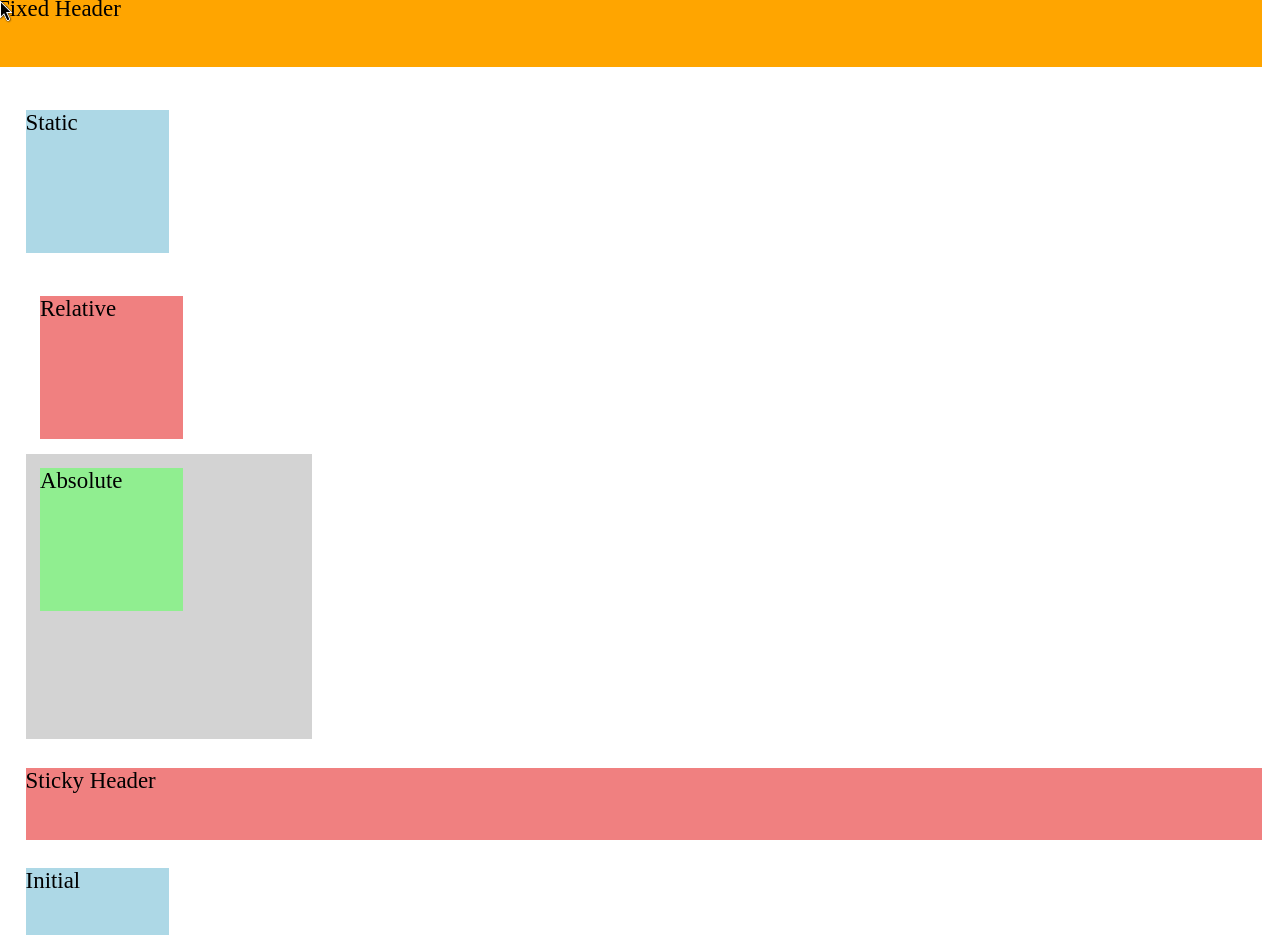
} <div class="unset-box">Unset</div>Full Example
<!DOCTYPE html>
<html lang="en">
<head>
<meta charset="UTF-8">
<meta name="viewport" content="width=device-width, initial-scale=1.0">
<title>Full Position Example</title>
<style>
body {
margin: 0;
padding: 20px;
}
.static-box {
width: 100px;
height: 100px;
background-color: lightblue;
position: static;
margin-bottom: 20px;
}
.relative-box {
width: 100px;
height: 100px;
background-color: lightcoral;
position: relative;
top: 10px;
left: 10px;
margin-bottom: 20px;
}
.container {
position: relative;
width: 200px;
height: 200px;
background-color: lightgrey;
margin-bottom: 20px;
}
.absolute-box {
width: 100px;
height: 100px;
background-color: lightgreen;
position: absolute;
top: 10px;
left: 10px;
}
.fixed-box {
width: 100%;
height: 50px;
background-color: orange;
position: fixed;
top: 0;
left: 0;
z-index: 1;
}
.content {
margin-top: 60px;
margin-bottom: 20px;
}
.sticky-box {
width: 100%;
height: 50px;
background-color: lightcoral;
position: sticky;
top: 0;
margin-bottom: 20px;
}
.initial-box {
width: 100px;
height: 100px;
background-color: lightblue;
position: initial;
margin-bottom: 20px;
}
.parent-box {
position: relative;
width: 200px;
height: 200px;
background-color: lightgrey;
margin-bottom: 20px;
}
.inherit-box {
width: 100px;
height: 100px;
background-color: lightgreen;
position: inherit;
}
.unset-box {
width: 100px;
height: 100px;
background-color: lightcoral;
position: unset;
}
</style>
</head>
<body>
<div class="fixed-box">Fixed Header</div>
<div class="content">
<div class="static-box">Static</div>
<div class="relative-box">Relative</div>
<div class="container">
    <div class="absolute-box">Absolute</div>
</div>
<div class="sticky-box">Sticky Header</div>
<div class="initial-box">Initial</div>
<div class="parent-box">
    <div class="inherit-box">Inherit</div>
</div>
<div class="unset-box">Unset</div>
<p>Scroll down to see all the effects.</p>
<p style="height: 1000px;">More content here to demonstrate scrolling.</p>
</div>
</body>Last updated on